

Messages & alerts
Read and search OPS messages, receive flight alerts and acknowledge them.
FLIGHTWIRE COMPANION / MOBILE
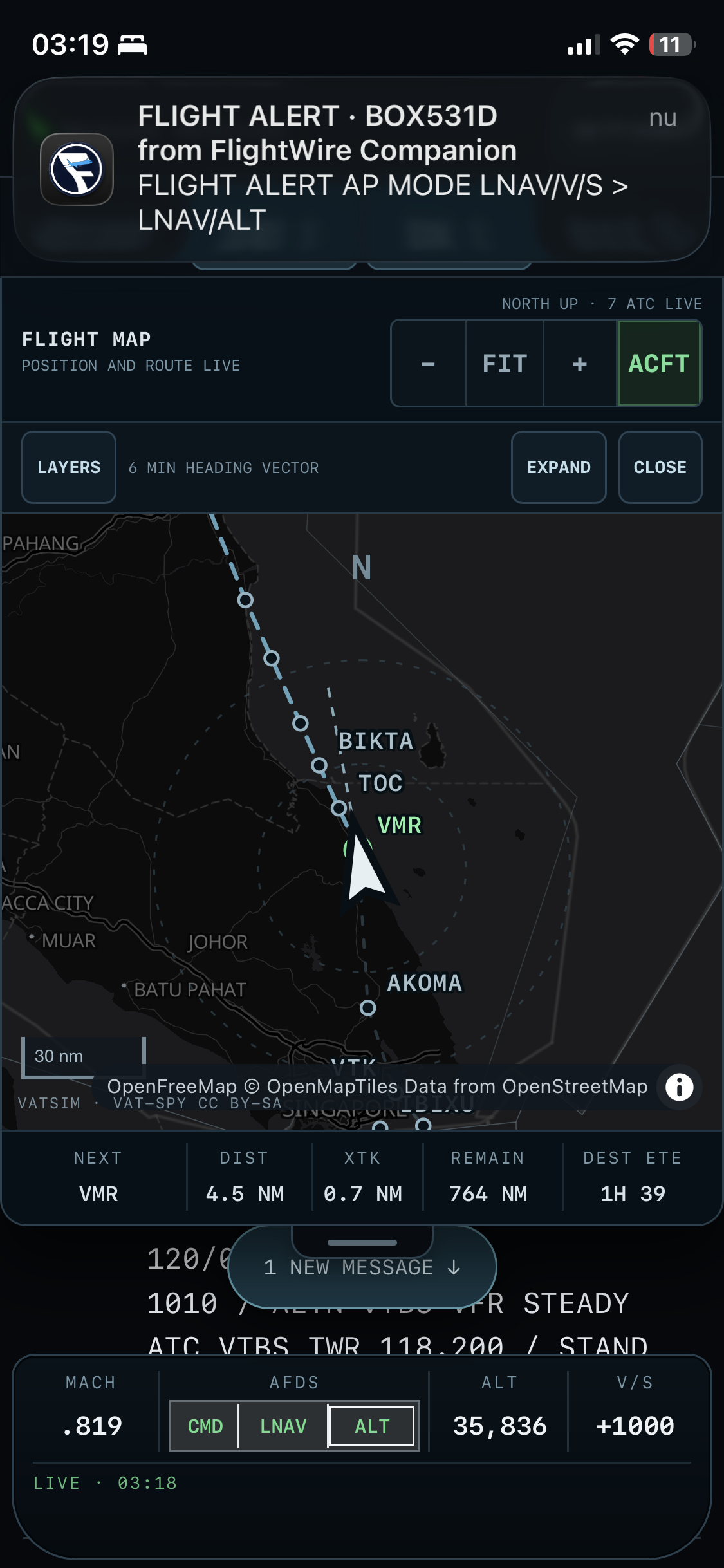
Your route, messages and aircraft status on your phone.
COMPANION FEATURES
Read and search OPS messages, receive flight alerts and acknowledge them.
See your route, position, map layers, next waypoint and estimated progress.
See altitude, vertical speed and flight modes, with a warning when data stops arriving.
CONNECT YOUR PHONE
Turn the supported aircraft’s wing lights on to start away-mode updates. Opening FlightWire or changing radio frequencies can pause them; cycle the lights off and on to resume.
TroubleshootingBEFORE YOU CONNECT
Requires a supported OPS aircraft. Recording-only mode disables Companion.
Aircraft compatibilityBoth devices need internet access. Updates and notifications depend on aircraft support, away mode and phone permissions.
Companion cannot control the aircraft. Acknowledging an alert confirms receipt; it does not resolve the issue or send an ACARS reply.